
Integrate VisuaLeaf with Tiger Cloud
Query, browse, and visualize your database from a cross-platform desktop database client
VisuaLeaf is a cross-platform desktop database client for Windows, macOS, and Linux, with a SQL editor, a results grid, a visual query builder, ER diagrams, and charts built from query results. It has a dedicated TimescaleDB connection type, and a free Community Edition alongside paid editions.
This page explains how to integrate VisuaLeaf with your Tiger Cloud service.
In this integration guide, you:
- Connect VisuaLeaf to your service using its TimescaleDB connection type.
- Browse your schema and hypertables in the VisuaLeaf
Connectionssidebar. - Run a time-series query from the VisuaLeaf SQL editor.
Prerequisites for this integration guide
To follow these steps, you'll need:
-
These steps use Tiger Cloud, but the same approach applies to a self-hosted TimescaleDB instance.
- Your connection details.
- VisuaLeaf downloaded and installed. The free Community Edition is enough for this guide.
Connect VisuaLeaf to your service
Section titled “Connect VisuaLeaf to your service”To connect to Tiger Cloud:
- Start VisuaLeaf and open the connection dialog
Click
New Connectionto open theConnect a databasepicker. - Select TimescaleDB as the connection type
In the search box, type
timescale, then selectTimescaleDB. It is listed underPostgreSQL-compatibleand connects over the standard PostgreSQL wire protocol.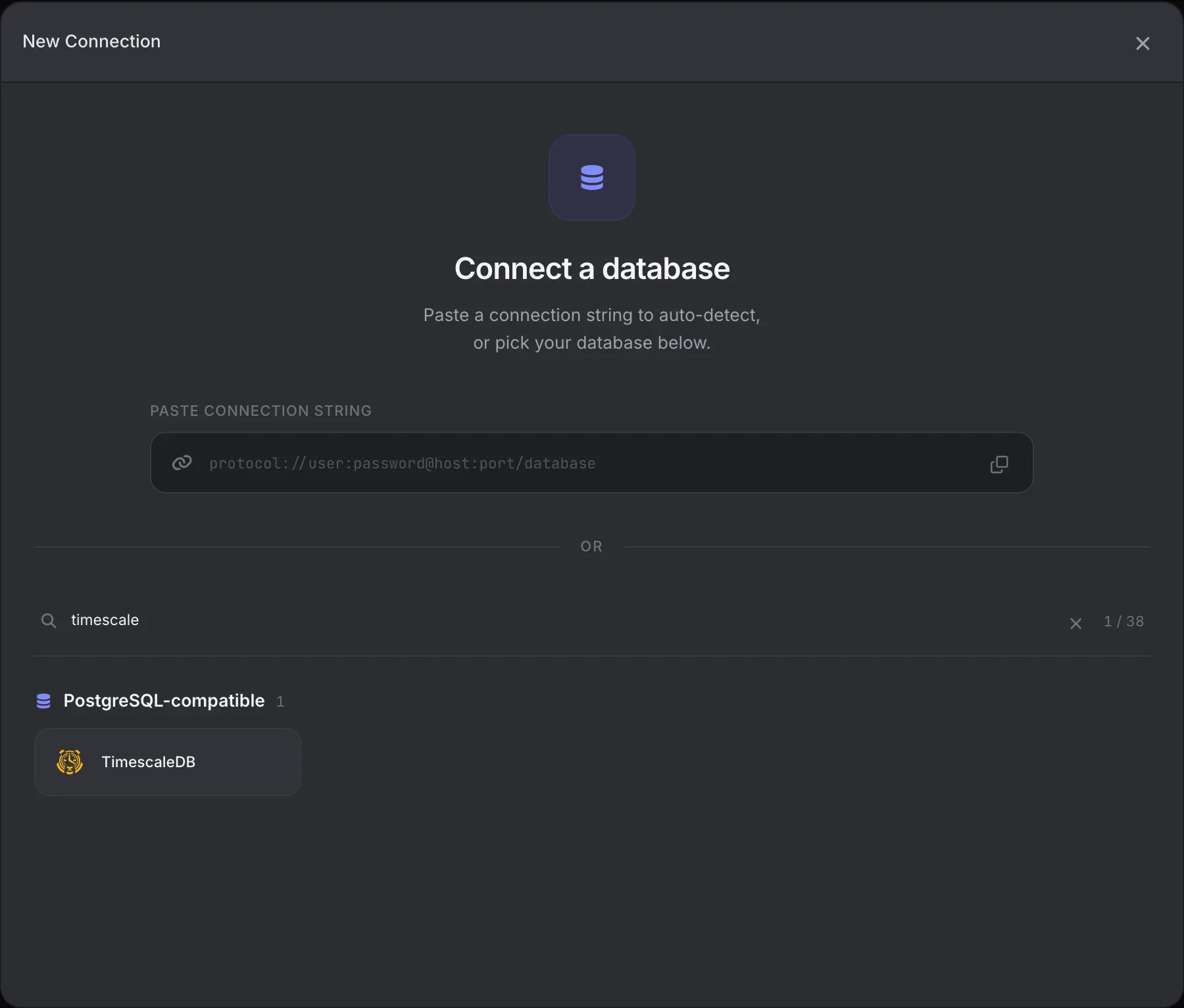
- Configure the connection
Fill in the connection name and use your connection details for
Host,Port(5432by default),Database,Username, andPassword. Tiger Cloud accepts unencrypted connections, so expandAdvanced driver propertiesand setsslmodetorequireto make sure yours is encrypted. - Click
Test Connection, thenSave & ConnectA successful test shows
Connection successfulabove the connection fields.Save & Connectsaves the connection and opens it in theConnectionssidebar.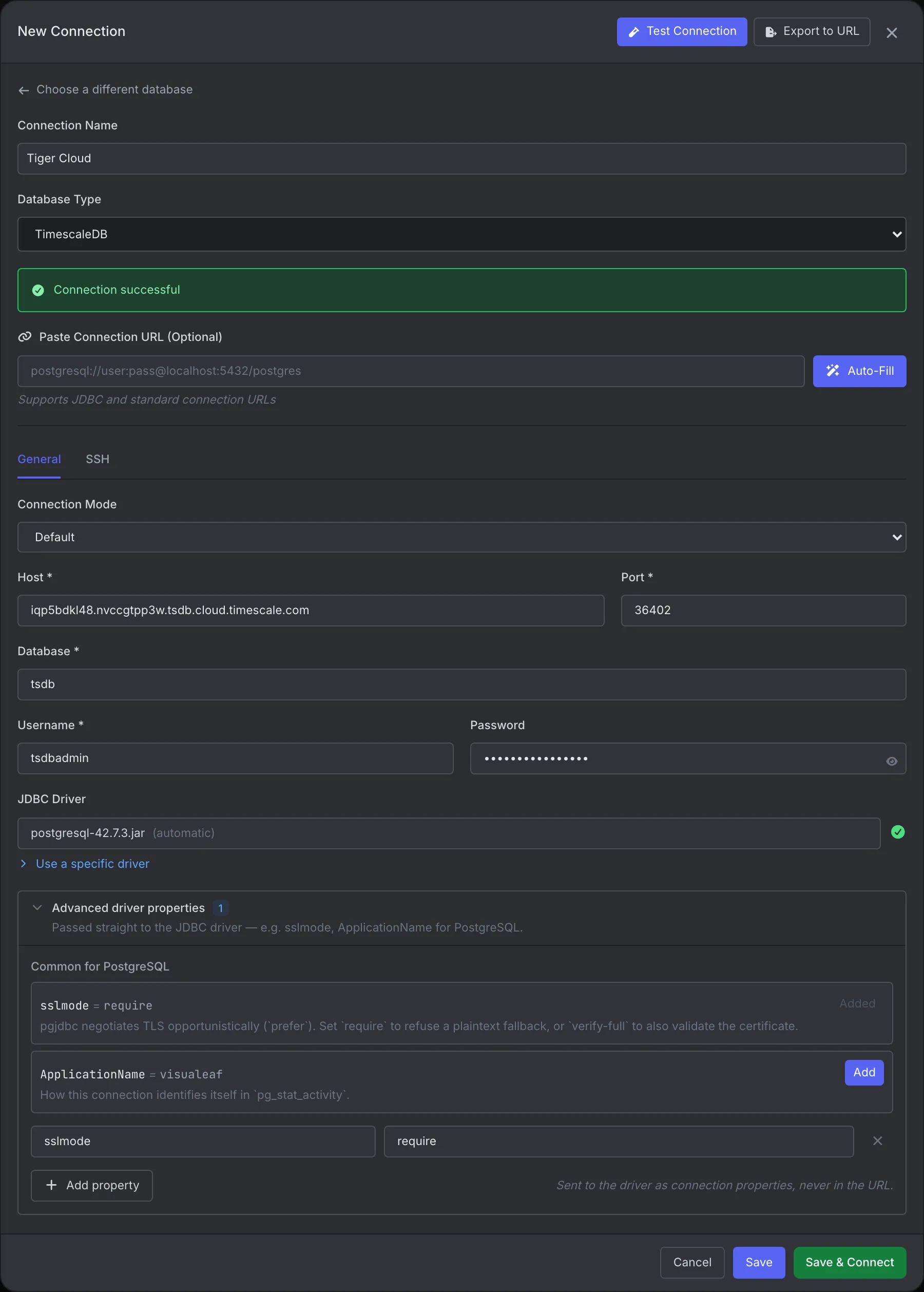
You have successfully integrated VisuaLeaf with Tiger Cloud.
Verify the integration
Section titled “Verify the integration”- Browse the schema
In the
Connectionssidebar, expand your connection, then your database. Expand thepublicschema, thenTables, to see your hypertables. The internal_timescaledb_*andtimescaledb_*schemas are listed alongside your own schemas. Double-click a hypertable to open its rows in a data grid.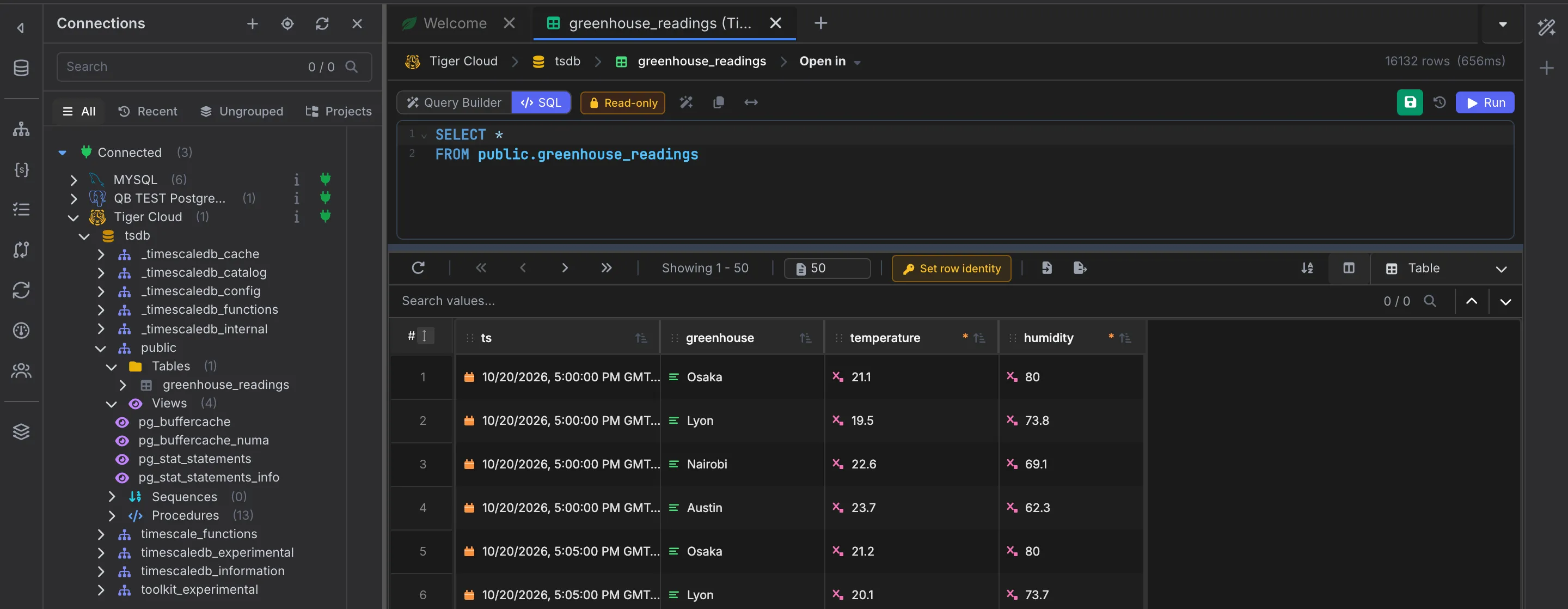
- Run a query against a hypertable
Right-click your database and select
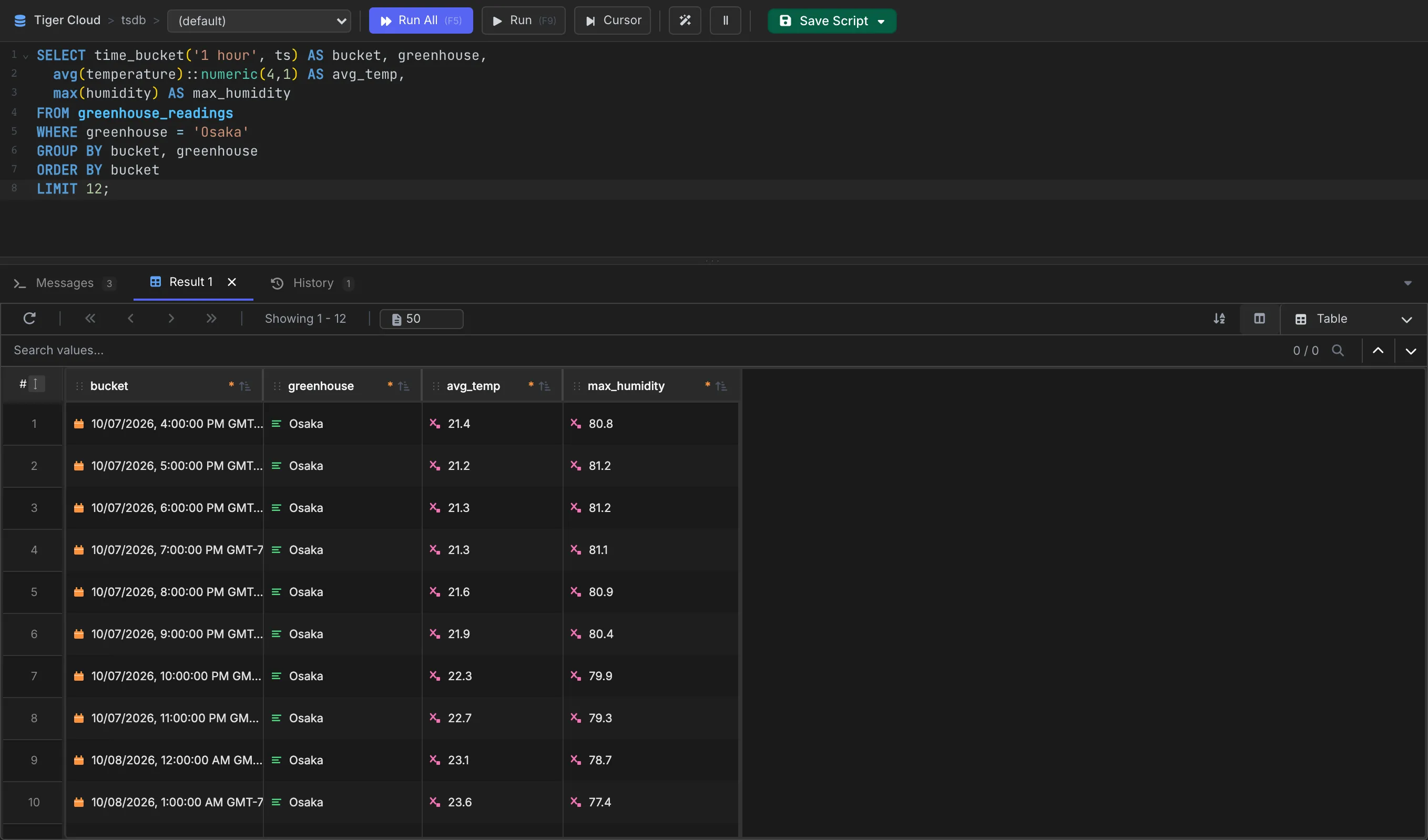
New SQL Editor. Run a query against one of your hypertables, for example:SELECT time_bucket('1 hour', ts) AS bucket, greenhouse,avg(temperature)::numeric(4,1) AS avg_temp,max(humidity) AS max_humidityFROM greenhouse_readingsWHERE greenhouse = 'Osaka'GROUP BY bucket, greenhouseORDER BY bucketLIMIT 12;Press
F5to run the whole script, orF9to run only the selected text. The results grid opens below the editor.